Excel 2016 Autofill and Copy-Paste Not Working After a Security Update (Fix)
Office · October 18, 2026
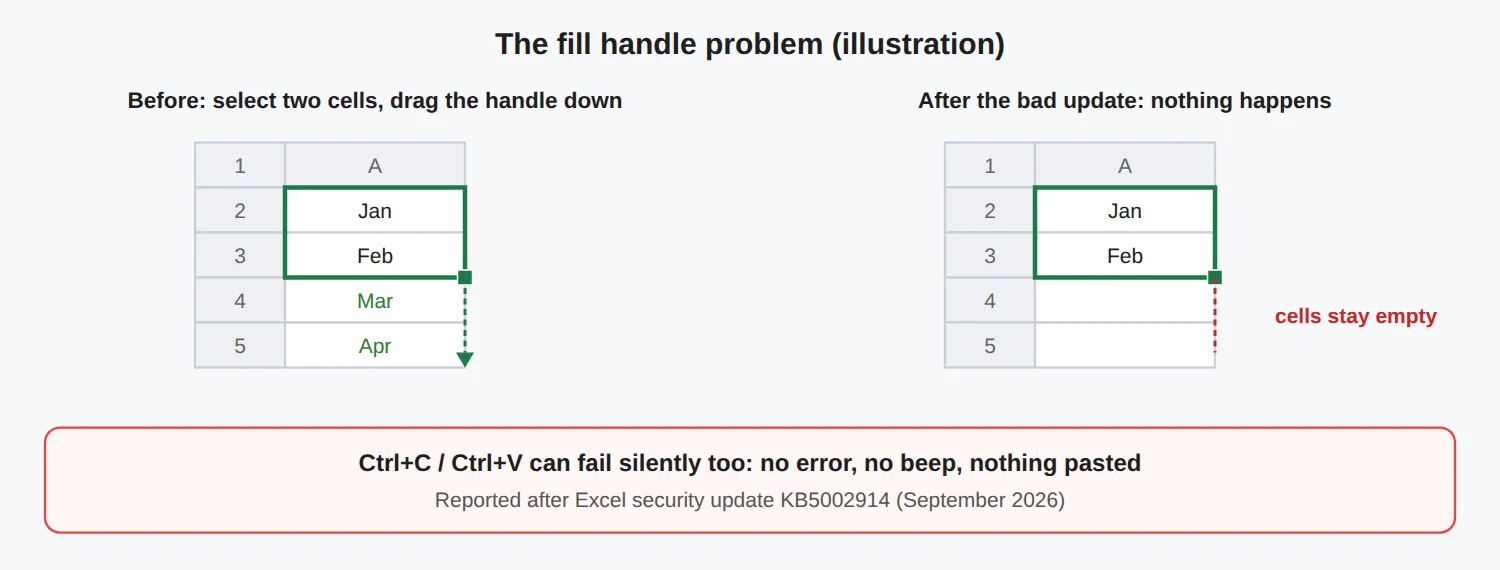
If you drag the little square at the corner of a cell and nothing fills, or Ctrl+C and Ctrl+V seem to do nothing, you are not alone. After the September 2026 Patch Tuesday, Excel 2016 users started reporting exactly this. The trigger was security update KB5002914, and Microsoft has since released a fix.
Quick answer: install Microsoft's September 16, 2026 update for Excel 2016, KB5002665. Until then, use Paste Special (
Ctrl + Alt + V). Do not remove the security update unless you have to, because it patches real vulnerabilities.What goes wrong
The fill handle (AutoFill) and normal paste fail silently. There is no error and no beep. The source cells stay selected and the destination stays unchanged. Microsoft described it as paste operations that might fail silently.
Who is affected
- Microsoft's known-issue note lists Excel 2016, 2019, 2021 and 2024, and Excel Online in Office Online Server.
- Users reported it with both MSI and Click-to-Run installs.
- The update is KB5002914, from the September 2026 security release. Microsoft added it to the known-issues list around September 10.
Step 0: rule out a simple setting
Before blaming the update, check that the fill handle is switched on. Go to File > Options > Advanced and make sure Enable fill handle and cell drag-and-drop is ticked. If it was already on and you also lose copy-paste, the update is the likely cause.
Fix: install the patch (recommended)
- Find your version: File > Account > About Excel, and note whether it is 32-bit or 64-bit.
- For Excel 2016, download KB5002665 (Microsoft's "September 16, 2026, update for Excel 2016") from Microsoft Support or the Microsoft Update Catalog, matching 32-bit or 64-bit.
- Close Excel and run the installer, then restart the PC and test.
For newer volume-licence editions, the reported fix builds are 10417.20208 (LTSC 2019), 14334.20918 (LTSC 2021) and 17932.21000 (LTSC 2024). Reports say these must be installed manually. Microsoft 365 users should simply update Office from File > Account > Update Options.
Workaround while you wait
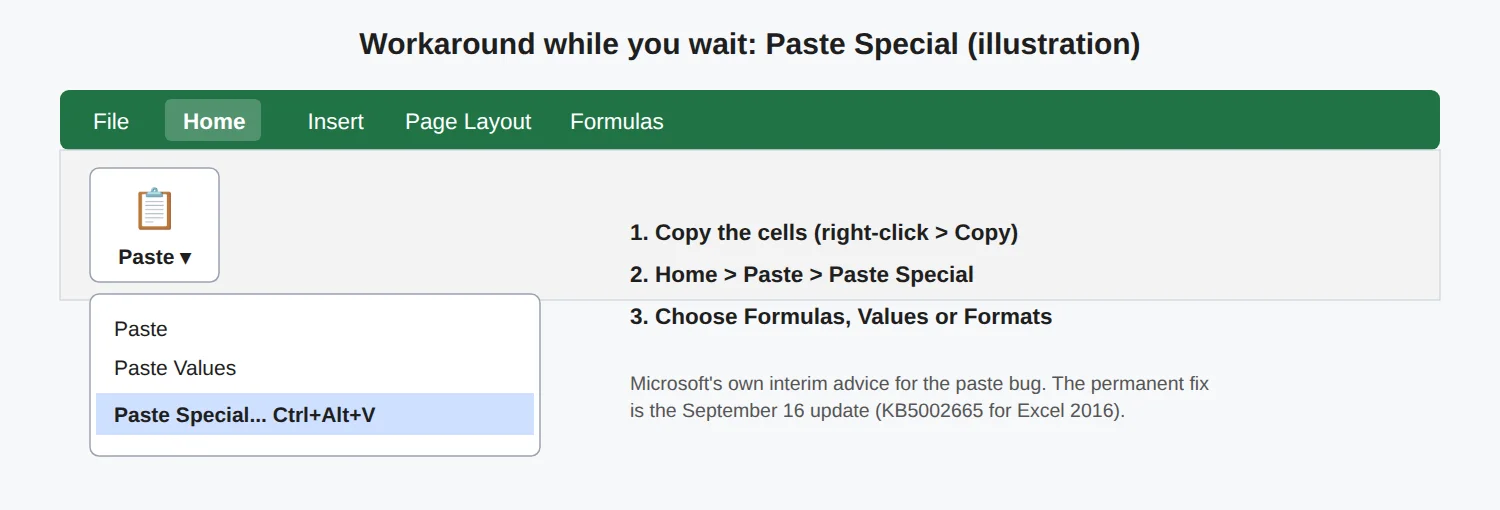
- Copy with right-click > Copy, then use Home > Paste > Paste Special (
Ctrl + Alt + V). Choose Formulas, Values or Formats. - Try
Ctrl + Dto fill down andCtrl + Rto fill right. Select the range that includes the cell with the formula first. We could not confirm these shortcuts are unaffected, so test them on a copy of your file.
Still not working after the patch?
Microsoft says paste can still fail in Office 2016 and LTSC 2019 when the workbook has conditional formatting. Its temporary advice is again Paste Special. Check Microsoft's update page for newer builds.
Last resort: uninstalling KB5002914
Some users removed KB5002914 and got copy-paste back, using Control Panel > Programs and Features > View installed updates, or an administrator command prompt:
wusa /uninstall /kb:5002914On Windows 11 the first method may not list the update. Remember that this removes a security patch and is a temporary step. Reports also say Click-to-Run installs cannot remove a single update this way and have to roll back the whole Office version instead, so prefer the fix above. Install KB5002665 afterwards.
Tip: turn on automatic updates for Office so fixes like this arrive without a manual hunt.
Sources
- BleepingComputer: KB5002914 breaks copy and paste
- BleepingComputer: Microsoft fixes the Excel paste bug
- Microsoft: September 16, 2026 update for Excel 2016 (KB5002665)
- Quarter To Three forum: AutoFill report and uninstall tip
Details can change as Microsoft updates its guidance. Last checked October 18, 2026.
Comments