Understanding File Permissions Without the Confusion
2 MIN READ · JUN 24, 2026
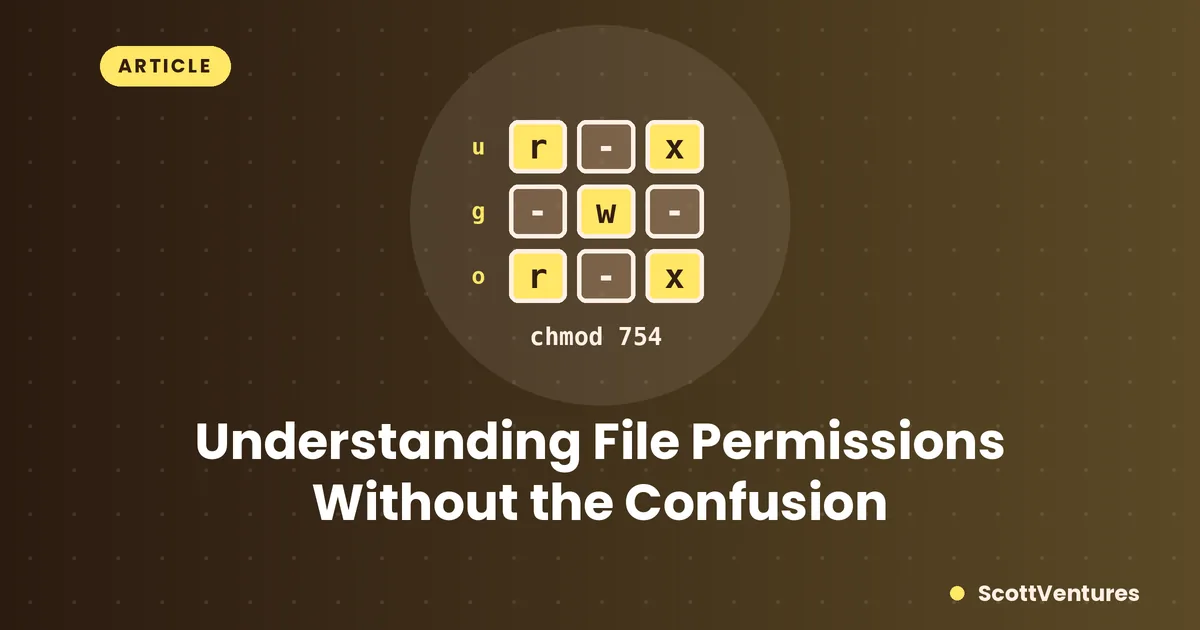
Run ls -l in any Linux terminal and you'll see something like -rwxr-xr-- next to every file. It looks cryptic until you know it's really just three groups of three, repeated.
Reading the string
Break -rwxr-xr-- into four parts:
-— file type (a dash means regular file,dwould mean directory).rwx— what the owner can do.r-x— what the group can do.r--— what everyone else can do.
Each group of three follows the same pattern: r for read, w for write, x for execute, in that order — a dash means that permission is off.
Where the numbers come from
Each permission has a fixed number: read is 4, write is 2, execute is 1. Add up whichever ones are turned on for a group, and you get one digit. rwx is 4+2+1 = 7. r-x is 4+0+1 = 5. r-- is 4+0+0 = 4. Put the three digits together in owner-group-other order and you get 754 — the exact number form of rwxr-xr--.
The one worth memorizing:
644 is the default for most files (owner can read/write, everyone else can only read) and 755 is the default for folders and executable scripts (owner has full access, everyone else can read and enter/run but not modify).
Using chmod
Once you know the number for what you want, chmod sets it directly: chmod 755 script.sh makes a script executable by the owner and readable/runnable by everyone else. You can also use letters instead of numbers — chmod +x script.sh just adds execute permission without touching anything else, which is often the quickest fix when a script won't run.
Why "permission denied" happens
Most "permission denied" errors come down to one missing bit — usually a missing execute permission on a script, or trying to write to a file you only have read access to. Running ls -l on the file in question almost always shows you exactly what's missing.
Comments